The New vSphere 6.0 Web Client

While VMware has been busy working on major feature upgrades to the core vSphere product for the 6.0 release, one of the most noticeable and welcomed upgrades might be the enhancements to the Web Client. We are all aware of the difficulties of the previous versions: very slow interface, items in unfamiliar places and missing functionality and plugins. Those who have been in the trenches with VMware over the past many years have grown very accustomed to the comfortable and familiar feel of the vSphere C# Client.  In fact, even with some of the newer features missing from the traditional client, we too often have gravitated back to it because that’s what we know and are used to with its quicker responsiveness.

VMware is trying hard to change that!

They’ve listened to the community and have produced a web client that just might convert the most resistant of users. This client has made vast leaps beyond its predecessors primarily in performance and user experience.

Performance

VMware sifted through every part of the Web Client, determined to make improvements to every part of the user interface and all the way through the software stack. They removed unnecessary code and streamlined the functionality to make this vastly quicker than its predecessors. VMware claims that log in times within the new web client are now up to 13x faster than before, going from an average of 25-30 seconds with the old client to a staggering 5 seconds with the new one. Additionally, each screen and menu click was examined and almost all items were streamlined to run faster. The chart below shows the performance gains, sometimes showing a 4x increase in speed when navigating the user interface. Disclaimer: This chart was part of VMware’s informational overview of the beta version of this product.

Speed-difference-5x-60

I ran my own tests which confirmed the increased speed that VMware has claimed. All navigational clicks are quicker, sometimes only by ½ to 1 second, but that can make a huge difference when working regularly with the Client. The biggest performance leap I noticed goes back to the login sequence. In the 6.0 version, the login prompt displays almost instantly, whereas in the older 5.x Client, there was usually an eight or nine second delay!

One of the challenges VMware had in re-engineering the Web Client were the differences among the various web browsers and how they handle code. One of their major findings was that Firefox was much slower than Internet Explorer or Chrome when using the Web Client. In some cases, Firefox took almost twice as long to load certain elements. VMware’s recommendation is to use IE or Chrome to get immediate performance enhancements even with the older 5.x version of the Web Client.

Improved User Experience

VMware really set out to bring some of the familiarity of the C# Client to the Web Client by putting elements back in their place. For example, the Recent Tasks pane was returned to the bottom of the screen where it has traditionally lived in the C# Client. This not only aides easier transition to this Client, but also provides more space to display more data. When previously placed on the side, the amount of space was too constrained for key information.

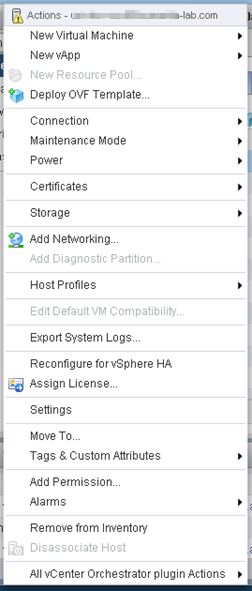
Right-click drop-down menus have been flattened, which allows for quicker interaction and easier flow. Instead of drilling into sub-menus such as the “All vCenter Action Items” sub-menu in the previous Web Client, we now get all of our major menu action items from each primary drop-down menu.

The illustration below shows the difference between the menus in the 5.5 Client and 6.0 Client.

Web5x-dropdown-menu
5.5 Web Client
6.0 Web Client
6.0 Web Client
Home button and menu on Web Client 6.0

Another enhanced feature is the Home button. Just hovering over the Home button near the top of the UI, brings up the root menu for all major inventory components of the infrastructure. Now, one click is all that’s required to navigate to each of the most used components and options. This might seem like a minor improvement over the Home and vCenter buttons with the 5.x Web Client, however the simplicity of having all functionality in one menu and with one click just seems more streamlined.

Finally, each of the element panes of the user interface can be moved around. If you prefer to have the Recent Tasks on the side, move it back. If you wish to have the Alerts pane on the bottom of the interface to mimic the C# Client, move it there. The layout is a property of the user profile, so multiple users can have their own customized layout upon logging in. This feature can also be completely disabled by the administrator to further control its use. Working with this feature, I personally had some struggles moving the panes and formatting everything to my liking. The functionality does appear to be a bit on the clunky side, and I did at one point get the UI a bit jumbled, but thankfully there is a “Reset to Default” option under the Help menu to restore the panes back to their original spots.  Harmony restored.

Added functionality

This release of the Web Client added little to the Plugin functionality that wasn’t already there. SRM functionality was missing until the latest release of SRM 5.8, but as of today, it works with the current 5.5 and later versions of Web Client. VMware Update Manager, however, is still only available through the C# Client or as a stand-alone install on a Windows Server. VMware has stated they are working on its compatibility for future releases. I expect they will iron out any remaining holes in functionality soon as the C# Client will be shipped one last time, presumably with this 6.0 release. I imagine once VUM is ready for the Web Client, the old client will be phased out completely, going the way of the service console heavy ESX. But for now, this still leaves us with two clients to use if we wish to leverage VUM or other third party plugins that do not have integration developed yet for the Web Client.

VMware has made it clear they are limiting the functionality of new features to the Web Client.  We have already seen this with the previous versions of the C# Client that did not support new products and features such as VSAN, so this is nothing new. However, there is one important exception to this, which has to do with hardware versions 9 through 11 (vSphere 5.1, 5.5 and 6.0, respectively).  Virtual hardware settings from all hardware versions can still be viewed with the 6.0 C# Client.  In addition, the C# Client can be used to modify any hardware feature that was available in version 8 or below, such as adding or removing vCPU/RAM, on any VM, even those with hardware versions 9+. The newer features that were added with versions 9 through 11, such as vSphere Flash Read Cache, can only be modified with the Web Client.

So there it is – a quick overview of the new and relatively zippy Web Client 6.0. As stated, this might be one of the most welcome upgrades offered in vSphere 6.0. The quality of the user experience can mean the life or death of any product and VMware certainly delivered a significantly improved product. Putting in some mileage in my own lab environment, I was excited to witness and experience these enhancements firsthand.  Kudos to VMware for listening to their customers and making these major improvements while setting the stage for greater feature enhancements and functionality down the road.

For additional articles on new vSphere 6 features and product launch info, be sure to link to my vSphere 6.0 Announced! post.

Goal Setting 2015 (Planning to Plan)

Here we are several weeks into January 2015, and this is typically the time when New Years resolutions start to taper off.  As most goal setting experts share, the gyms are crowded the first week of January as resolutions are set, but by the end of the month, the gyms are empty again.  Why?  Because we don’t set our goals properly, commitments are not made to last and quite frankly, life gets in the way and we drift back to our comfort zones.  The changes are not lasting.

I am a goal setting fan – and yes, I do my own little resolution exercise each year.  I write out my reflections of the past year and projections for the upcoming year.  I love the possibilities of what I can attain and the New Year provides the clean slate.  It’s the excitement of the possibilities that fuel this yearly exercise of dreaming big.  Ah, the possibilities – the opportunity!  I list out my big dreams for the year, look over my list with pride and then… well… I go about my business while trying to keep in mind these goals that I must start working on.  Last year, I came up with some major goals and I hit less than 25% of them.  OK, that’s 25% further than where I was at the beginning of the year, but why didn’t I see a bigger hit rate?  This post will delve into the lessons I’ve learned about goal setting and lay out an approach that will hopefully enable my success rate to be much higher this year.

Some goal setting advice seems like common knowledge.  We all know the need to write down our goals.  Experts have said that when we write them down, we have a significantly greater chance of completing them.  We also know we need to be specific and set a time line.  The acronym SMART has been listed by many as sound criteria for our goals: Specific, Measurable, Attainable, Realistic, and Time-bound.  And the goals should be broken down into the major areas of our lives: Health, Career, Financial, Family, Spiritual, Personal Development and Recreation.  There are so many goal setting books, articles and courses that delve into each of these guidelines that I won’t elaborate on them further.  What I will share is the different approach I’m taking this year.

With all the ambition and confidence I start each year with, I fail to do two major things:  Keep my target list in front of me and break down each goal into smaller steps.  So… the strategy listed below outlines a very logical way of resolving both shortcomings.

1. One year goals

First, list out all your wildly ambitious goals for the entire year and review them regularly.  Unlike last year when I typed my goals out, I hardly looked at them throughout the year.  One of my goals was to read 10 books.  It was mid-way through the year when I realized I had forgotten about this goal and I had only then read my first book.  Not the way to stay on track.  The next three steps will help to keep these goals visible.

2. 90 day goals

After you make your list of goals for the year, break them down into 90-day goals.  For each of your major goals, determine how much progress you need to make in the next three months to stay on track to complete the goals in one year.  If my goal is to read 20 books, I determine I need to read 5 books within the first quarter of the year.  If a goal is an achievement, such as a certification, I calculate a measurable amount of the overall achievement I need to complete within that time frame.  If my goal is to achieve a CCNP certification, I will make two of the four required exams my goal for that 90 day period.

3. Weekly goals

With the 90-day goals listed out, then break them down into weekly goals.  Each 90-day period has roughly 13 weeks.  Estimate how much you need to complete each week in order to achieve the 90-day goals.  For example, reading 5 books in 90 days means reading over a third of a book each week.  For a certification goal, I’ll determine how many chapters in a book to read or how many points on the exam blue print I need to knock out.

Then, for each week, schedule time the day before the start of the week to write out the goals for the upcoming week.  I’ve set my target week to begin on Mondays since that easily coincides with the beginning of the work week.  That means I set aside time on Sunday nights to review how I did the previous week and then lay out my plans for the upcoming week.  That way, when Monday morning comes, I hit the ground running.

4. Daily goals

The list making doesn’t stop there!  Once you know your weekly goals, determine what you need to accomplish each day in order to make progress throughout the week toward those goals.  Write up your daily task list.  This of course can be incorporated into any To-Do system you might use.  I personally use Todoist, but there are so many resources out there.  Whatever system works for you will suffice as long as you use it.  Key principle:  If you don’t use it, it doesn’t work.  When you do use it, you typically stay on task because the action items are in front of you AND you receive the thrill of checking items off.  Yes, we all love that feeling, so why not experience that thrill every day and be more productive in the process?!

So there it is… My four point system for manifesting all my dreams this year!

I give credit to Peter Winiarsky for providing this seemingly obvious approach.  I recently read his book, Act Now!, which lays out the above strategy for achieving goals within 90 days.  He provides far more detail in his book along with many other recommendations to keep one on track.  I highly recommend picking up a copy of his book and employing some or all of his approach.  Winiarsky’s book is only one of hundreds of goal setting books on the market.  Any of them will have good advice, but the key principle with any program is to put the ideas into action.

Additional Resources

I will call out one more helpful book that I’ve recently read – The Miracle Morning, by Hal Elrod. The point of his book is to lay out a morning strategy that empowers one to have the focus, energy, confidence (and time!) to achieve one’s goals throughout each day.  There’s nothing new written here, but Hal packages it in an inspiring and memorable way to motivate one to get up early each morning ready to hit the ground running.  I personally love my mornings, not just because it gives me a jump on my day, but because it’s sacred time – when the rest of my family is still asleep and the time is truly mine.

Other resources I’ve found to help me stay on track are podcasts.  I am a podcast listening nut.  I love my drive to and from work since that’s learning time for me.  I have my iTunes favorites set to a number of productivity and business success podcasts. It’s truly amazing how much material is freely available.  Some of the ones I’ve recently discovered are Achieve your Goals (Hal Elrod), This is Your Life (Michael Hyatt), The Portfolio Life (Jeff Goins), and Beyond the To-Do List (Erik Fisher).  Of course I have all my Tech related podcasts to keep me up to date on the latest in the industry (In Tech We Trust, Speaking in Tech, Geek Whisperers, vBrownBag, VUPaaS, VMware Communities Roundtable,… and so many others).  And that’s another way I leverage my time; I use my drive time to learn and keep my brain active.

Another great tool I’ve used for daily productivity is the “Pomodoro Technique”.  It’s essentially a technique for maintaining focus when working on projects.  It simply uses a timer set for 25 minutes during which time you work on a task with no distractions.  Once the 25 minutes are up, you take a break for 5 minutes to relax the brain.  Get up from your desk, grab a coffee, walk around, stretch, surf the web, or do whatever you want as long as you disengage. Then rinse and repeat. Studies show when you work with regular breaks, you actually work more efficiently and thus get more accomplished.  For me, it helps me stay focused.

So there it is… a strategy and some additional tools and techniques for making this a powerhouse year!  If you have additional thoughts, suggestions or resources, feel free to share!